User interface translation is now a core requirement for any enterprise or government platform serving India’s multilingual users. As digital services expand, your UI becomes the first touchpoint that determines trust, usability, and adoption. Around 80% of India’s monetizable internet users prefer vernacular (native-language) content.
When your UI is not translated well, users struggle to complete tasks, navigation becomes confusing, and critical services become inaccessible. Issues like inconsistent terminology, broken layouts, and literal translations often lead to drop-offs that directly impact conversions, service delivery, and citizen experience.
For teams managing enterprise-scale platforms, these challenges multiply across devices, regions, and fast-moving product updates. This blog will help you understand user interface translation and the essential strategies you need to deliver accurate, intuitive, multilingual UI at scale.
Key Takeaways
- UI translation shapes user trust, task completion, and overall adoption across multilingual audiences.
- Effective translation depends on intent-driven wording, context clarity, and script-friendly design choices.
- Scalable UI localisation requires structured workflows, glossary alignment, metadata-rich strings, and real device testing.
- Success is measured through metrics like task efficiency, drop-off points, interaction patterns, and accessibility performance.
- Anuvadak streamlines UI translation with centralised control, automation, translation memory, and secure enterprise-scale infrastructure.
What Is User Interface Translation and Why It Matters for Multilingual Users?
User interface translation focuses on adapting the labels, buttons, menus, alerts, and microcopy that guide your users through digital journeys. It matters because you are not only translating words. You are shaping how users navigate tasks, understand actions, and trust the system.
Here are the key points you should understand clearly:
- UI Translation vs Content Translation: UI translation adapts interactive elements, while content translation handles long-form information. For you, this distinction is important because UI text influences behaviour. For example, a mistranslated button label in a financial app can cause users to hesitate or abandon the process.
- Why UI Needs Precision and Context: UI text is short and functional, so users rely on every word for direction. If you translate without context, users may misinterpret the action. For instance, a generic term for Apply can confuse users when they expect Submit for a form.
- Why UI Shapes User Trust in Multilingual Contexts: If your platform speaks the language your users think in, they feel confident performing tasks. For government portals and BFSI apps, this trust directly affects adoption, compliance, and service completion rates.
- How UI Translation Supports Inclusive Digital Access: When your interface reflects the linguistic diversity of your audience, you lower cognitive load. This helps first-time digital users complete tasks independently, especially in public sector and financial services platforms.
Also Read: Top Use Cases of Healthcare Chatbots in 2025
Explore key approaches in user interface translation blogs to ensure seamless experiences for multilingual users before entering into practical strategies.
Essential Strategies for Translating User Interfaces Effectively
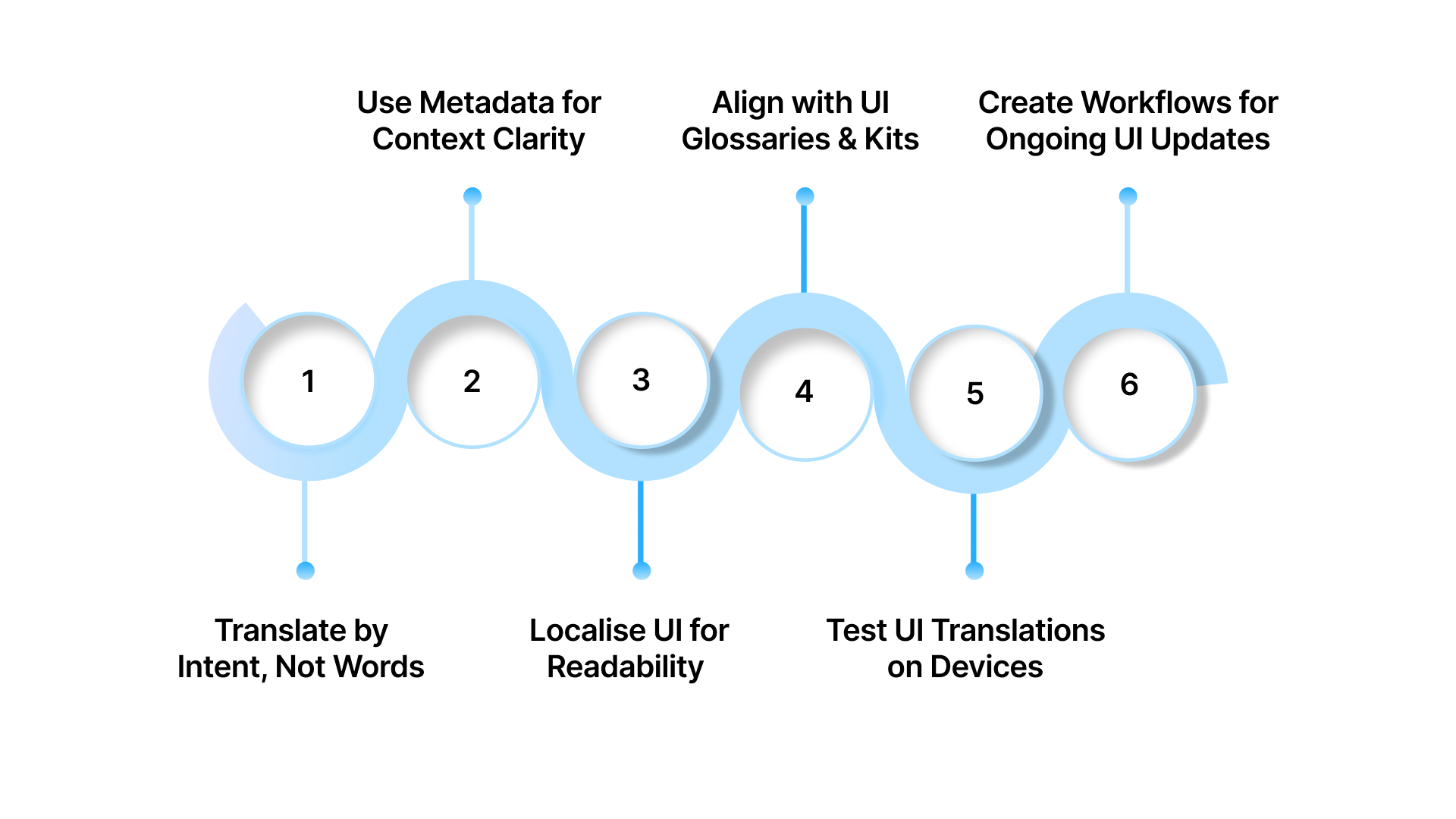
Effective UI translation depends on how well you align language, intent, and interaction. As your digital products scale across regions, you manage complex interfaces that shift with device types, user segments, and evolving feature sets. This means your translation approach cannot rely on static copy conversion.
Below are the core strategies you should apply in your UI translation workflows.
Strategy 1: Translate Based on Intent, Not Literal Words
When you translate UI text, your goal is to express what the user needs to understand at that moment, not the exact wording from the source language. Your interface guides users through decisions, confirmations, warnings, and task flows, so each phrase must reflect the intended action.
Below are the principles that help you translate with intent:
- Match the User’s Mental Model: Choose terms that users naturally expect in your domain. For example, in a banking app, a label for closing a deposit should use a regionally intuitive term for withdrawal rather than a strict translation of close.
- Reflect the Purpose of the Action: Simplify text so users instantly grasp what will happen next. If a button triggers a final submission, choose a phrase that signals completion rather than repetition of form language.
- Avoid Translating Idiomatic or Domain-Specific Phrases Literally: Some English UI phrases do not map cleanly to Indian languages. Replace them with clear action-oriented terms that prevent misinterpretation.
- Keep the Tone Consistent With User Expectations: Your UI tone should match your service environment. If you manage a healthcare app, choose supportive and clear expressions that reassure users rather than literal equivalents that sound mechanical.
If your app users rely on critical journeys across regions, it is the right time to streamline your App Localisation pipeline. See how Anuvadak helps you turn complex multilingual interfaces into smooth, intuitive experiences.
Strategy 2: Use String-Level Metadata for Context Clarity
When you manage large multilingual interfaces, short phrases often appear disconnected from the workflows they support. Without context, your translators cannot determine whether a string is a label, an action, a status, or a system feedback message. String-level metadata helps you eliminate this ambiguity.
Below are key metadata practices to include:
- Add Functional Tags to Each String: Identify whether a string is a button, title, hint text, or notification. For example, marking Save as an action helps translators choose wording that signals a task rather than a headline.
- Specify the Location of the UI Element: A phrase used in a settings panel needs different language from the same phrase used in a transaction step. Location metadata helps your translators adjust tone and specificity.
- Provide Sample Screens or Wireframe References: Attaching a visual reference removes guesswork. For example, when translating a mobile onboarding card, a screenshot helps your team gauge spacing and adjust phrasing effectively.
- Include Notes for Conditional or Dynamic Strings: If a string changes based on user data, add rules explaining those variations. This ensures translations remain accurate across personalised scenarios.
Strategy 3: Localise UI for Readability and Script Flow
When your interface moves across Indian languages, each script behaves differently in terms of stroke density, spacing, and visual rhythm. As a result, your translated UI must feel natural to users who rely on specific reading patterns.
Below are the practices that help you optimise readability and flow:
- Choose Fonts Optimised for Regional Scripts: Use typefaces designed for scripts like Devanagari, Tamil, or Telugu. For example, selecting a font with adequate curve clarity improves legibility on low-resolution screens.
- Adjust Line Height and Spacing for Script Density: Each script has unique character proportions. Increase or decrease spacing based on how tightly characters cluster. This helps users scan information without strain.
- Balance Contrast to Support Visual Clarity: Regional scripts with intricate strokes may require higher contrast. In a government portal, for instance, sharper contrast improves clarity for users accessing services on budget devices.
- Use Short, Clear Phrases That Fit the Script Flow: Express actions in concise terms that align with how the language is spoken. This prevents visual clutter and supports quicker decision-making.
Strategy 4: Maintain Consistency With UI Glossaries and UI Kits
As your platform grows, multiple teams touch the interface. Without shared terminology, you risk inconsistencies across modules, releases, and languages. A unified UI glossary and UI kit give your translators and designers a single reference point that keeps your product language stable across every touchpoint.
Below are the practices that strengthen linguistic and visual alignment:
- Create a Master Glossary for High-Frequency Terms: Define standard translations for terms like profile, dashboard, and history. When your glossary acts as the single truth, you avoid conflicting labels across teams.
- Document Component Text Within Your UI Kit: Link each design component with its approved language variants. For example, a primary button should always use the same translated label across screens.
- Set Rules for Tone and Style Across Languages: Align the tone with your service environment. If you operate an insurance platform, your tone should stay calm and precise across all translated versions.
- Share Glossaries With Engineering and QA Teams: When all teams review the same reference, you minimise rework. This ensures your final UI remains consistent from design to deployment.
Strategy 5: Test UI Translations on Real Screens and Devices
Laboratory checks are never enough when your UI needs to perform across varied device types, network conditions, and user environments. Real-world testing helps you see how translated text behaves once it interacts with actual screen sizes, touch targets, and operating system styles.
Here are the key testing practices you should follow:
- Test on Devices Your Users Commonly Use: Run checks on low and mid-range smartphones, tablets, and desktop resolutions. For example, if your platform supports rural service delivery, verify that text remains clear on entry-level Android devices.
- Check Interaction Flow With Translated Elements: See how users move through actions like scanning, uploading, or onboarding. A translated prompt that is slightly longer may alter how quickly users react.
- Validate Touch Targets for Larger Scripts: Some scripts occupy more vertical or horizontal space. Confirm that buttons and selectors remain easy to tap without accidental clicks.
- Record Edge Case Behaviour Across Languages: Look for text clipping, scrolling issues, truncated notifications, or misaligned icons. These issues often appear only when languages change the rhythm of the UI.
Implementing essential strategies for user interface translation sets the stage for using technology that supports UI translation at scale.
What Technology Supports UI Translation at Scale?
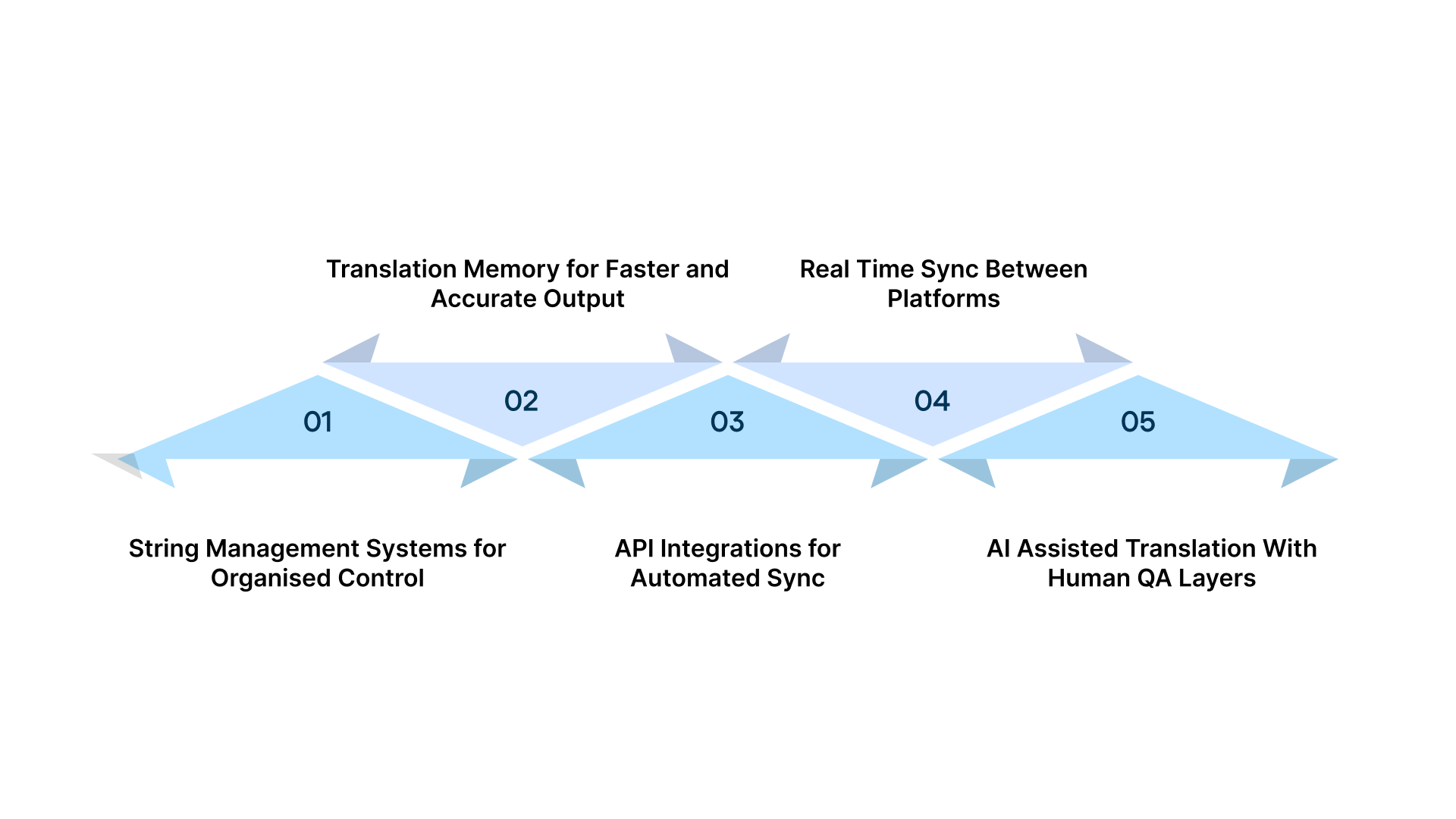
When you manage multilingual interfaces across enterprise platforms, you need technology that can handle rapid updates, large volumes of strings, and secure data movement.
Below are the core technologies that support UI translation at scale:
- String Management Systems for Organised Control: Centralise every UI string in one system. This helps you maintain clean inventories for buttons, labels, prompts, and dynamic text. For example, you can assign ownership, status, and context tags for each string.
- Translation Memory for Faster and Accurate Output: Store previously approved translations so your teams never redo work. If you update a user profile module, translation memory retrieves past phrases instantly and keeps your UI aligned.
- Real Time Sync Between Platforms: When your app and website localisation share components, real-time sync prevents mismatched language versions. This is especially helpful for product managers handling multi-platform releases.
- AI Assisted Translation With Human QA Layers: Use AI to generate initial translation drafts for short UI phrases. Your reviewers can then refine tone, intent, and usability. This hybrid approach speeds delivery without compromising clarity.
Understanding the technology behind UI translation helps identify and address the challenges enterprises face when scaling multilingual interfaces.
What Challenges Enterprises Face When Translating User Interfaces? (With Solutions)
As your digital products expand across regions, your UI becomes more complex to manage. You must balance accuracy, speed, and usability while handling thousands of interface elements that evolve with every release.
Below are the key challenges you face along with practical solutions:
- Text Expansion Creating Visual Disruptions: Many Indian languages take more space than English. This can stretch containers or alter alignment.
- Solution: Design flexible layouts that adjust gracefully and allow variable string lengths across languages.
- Tight UI Components Restricting Translated Text: Icons, tabs, and compact fields often have limited space.
- Solution: Use shorter, meaning-rich terms during translation and create alternate versions for space-constrained components.
- Dynamic UI Elements Changing Based on User Data: Auto-generated text can become unclear once translated.
- Solution: Add rules for variable text and specify approved patterns to ensure dynamic content reads naturally.
- Strings Without Sufficient Context Leading to Misinterpretation: Without clarity, translators may choose incorrect wording.
- Solution: Attach metadata, notes, and visual snapshots so each string is translated with accurate understanding.
Also Read: International Business Strategy: Key Considerations for Entering New Markets
Addressing common UI translation challenges lays the foundation for lesser-known tips that strengthen multilingual user interface experiences.
Lesser-Known Tips to Strengthen Your User Interface Translation
Some improvements are not widely discussed yet have a significant impact on how smoothly your multilingual UI performs. These tips help you refine clarity, reduce friction, and improve overall translation quality.
Here are practical tips you can apply immediately:
- Prioritise High Impact Screens First: Focus translation effort on journeys that influence adoption, such as login, onboarding, payments, and verification before expanding to secondary modules.
- Create Microcopy Variants for Space Constraints: Prepare short and ultra-short alternatives for commonly used UI phrases so you can adjust quickly without redesigning components.
- Test Language Switching as a Continuous Flow: Validate not only translated screens but the entire switching experience when users change languages midway through key actions
- Capture Real User Feedback Early: Use in-app prompts for regional language users to identify confusing terms or unclear microcopy before large-scale rollout.
- Monitor Release Notes for Text Level Changes: Review each release note for newly added or adjusted strings to prevent missing updates during localisation cycles.
If your website serves users across states or public service zones, your layouts must adapt beautifully to every script. Explore how Anuvadak simplifies Website Localisation and helps you build interfaces that every user feels at home with.
Applying lesser-known tips in user interface translation ensures measurable improvements, paving the way to track success through key metrics.
What Metrics Show the Success of User Interface Translation?
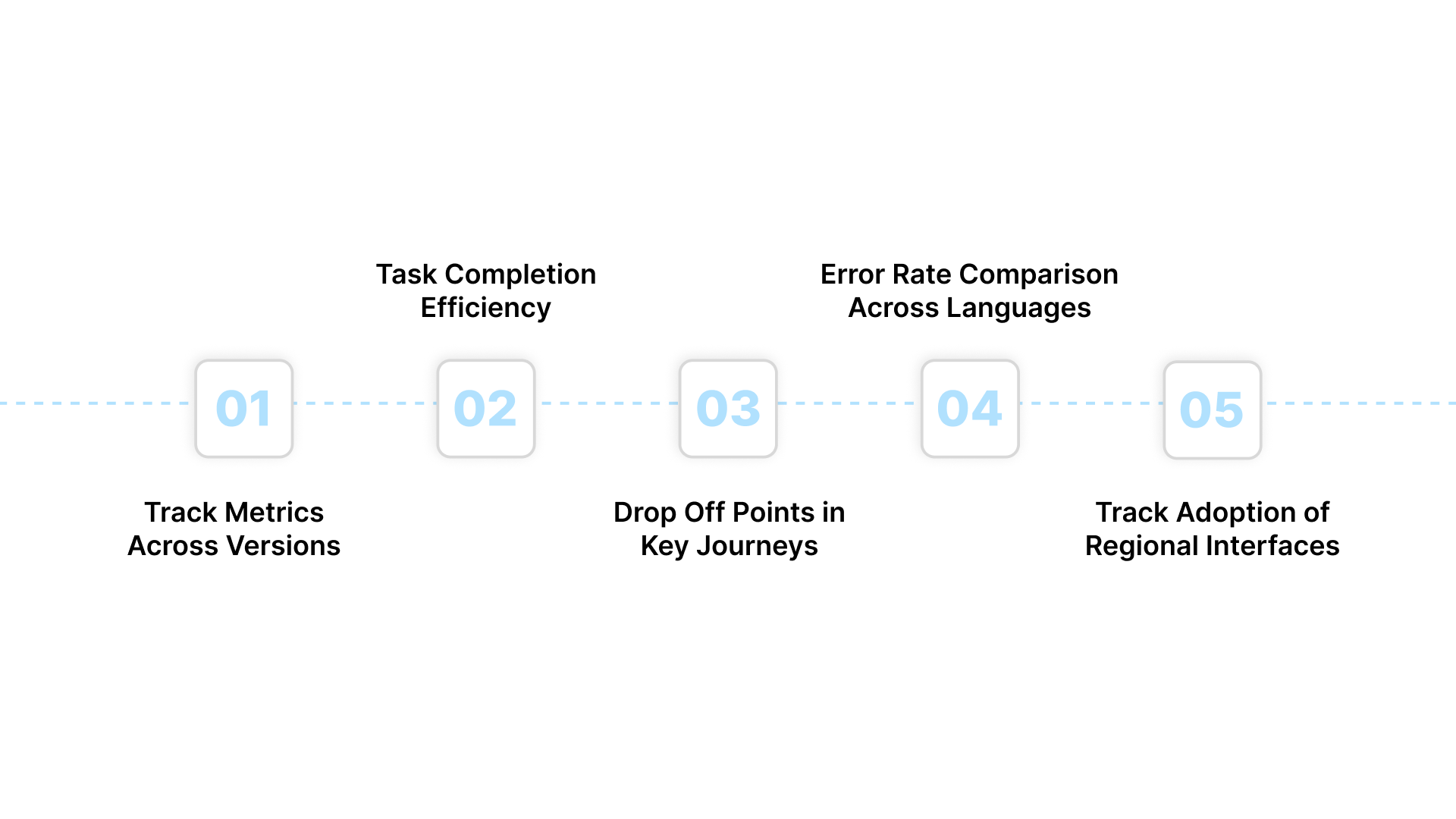
Once your multilingual UI goes live, you need measurable indicators to understand how users interact with it. Good translation is not just about linguistic accuracy. It is about how effectively users move through journeys, complete tasks, and trust your platform in their preferred language.
Below are the metrics that help you evaluate UI translation success:
- User Interaction Metrics Across Language Versions: Track clicks, scroll depth, and navigation choices. If users in a specific language drop off early, their interface may be unclear or overloaded.
- Task Completion Efficiency: Measure how quickly users complete tasks such as signups, payments, or service requests. Shorter completion times indicate that instructions and actions are understood well.
- Drop Off Points in Key Journeys: Identify stages where users exit. For example, if regional language users exit during verification, the translated prompts may need refinement.
- Adoption Rates for Regional Language Interfaces: When you track how many users switch to or continue using translated UI, you can assess trust and preference patterns for different regions.
Also Read: Contact Centre Quality Assurance: 10 Best Practices for 2025
Now, let us see how Anuvadak helps teams translate and manage UI at scale.
How Anuvadak Helps Teams Translate and Manage UI at Scale?
Anuvadak gives you a structured, technology-driven approach to managing multilingual UI across enterprise and government platforms. Instead of juggling manual files, disconnected teams, and inconsistent updates, you get an integrated system that streamlines translation, context management, review cycles, and deployment.
Below are the ways Anuvadak supports your UI translation workflow:
- Centralised UI String Management: You can store all interface elements and track their status in one place. This removes scattered files and ensures your team always works with the latest strings.
- Context Aware Translation Workflows: Anuvadak lets you attach metadata, screenshots, and notes to each string. This helps your translators choose the right phrasing based on where and how the text appears.
- Glossary and Terminology Control: You can maintain a unified glossary for all high-frequency UI terms. This keeps your labels, actions, and messages consistent across modules and releases.
- Automated Sync With CMS and Design Systems: Anuvadak connects with your platforms so new or updated strings flow automatically into translation workflows. This reduces manual effort and prevents version gaps.
- AI Assisted Translation With Human Oversight: You can use AI to speed up first pass translations for short UI text. Human reviewers then refine the output to match tone, intent, and usability.
- Translation Memory for Faster Rollouts: Anuvadak retrieves previously approved UI translations so you never start from scratch. This helps you accelerate updates for recurring or similar UI components.
Understanding how Anuvadak supports UI translation at scale leads to key takeaways for delivering seamless multilingual experiences.
Conclusion
UI translation shapes how confidently your users interact with your digital services. When every label, button, and instruction aligns with their natural language patterns, you reduce friction and create a seamless experience across regions. Anuvadak gives you that advantage by helping you manage multilingual UI with precision, automation, and context clarity.
Do not wait until usability issues appear in your regional language journeys. Explore Anuvadak today and see how it simplifies enterprise-scale UI translation. If you want tailored guidance for your product or government platform, speak with the Anuvadak team now to secure your slot.
FAQs
1. What is the difference between localisation and internationalisation in UI design?
Internationalisation prepares your product architecture to support multiple languages without redesigning components. Localisation adapts the actual text, visuals, and interactions for each language. You handle internationalisation first so localisation becomes efficient and scalable.
2. How do I prioritise which languages to add first in my product interface?
Start by analysing user demographics, traffic patterns, and regional adoption goals. Focus on states or service zones where your platform expects high engagement. Consider regulatory requirements for government or BFSI platforms.
3. What skills should a UI translator or localisation specialist have?
UI translators need a strong command of target languages, understanding of UI design principles, and familiarity with product workflows. They should interpret intent, handle short functional text, and adapt terminology consistently.
4. How do multilingual error messages impact user behaviour?
Clear error messages help users recover quickly. Poor translations create confusion and increase abandonment. When users see accurate, culturally familiar guidance, they trust the platform and retry confidently.
5. What are the best practices for handling numbers, dates, and currencies in regional language UI?
Use local formats, script appropriate numerals, and clear separators. Ensure date structures follow regional reading habits. Keep currency values consistent across modules. Always test display behaviour across devices.