Did you know that Indian enterprise employees spend up to 57% of their workday in meetings, calls, and digital conversations, yet much of this voice data remains untranscribed and unusable? Multilingual speech across Hindi, Tamil, Telugu, Marathi, and mixed Hindi-English contexts makes accurate transcription even more challenging at scale.
Relying solely on default tools like Microsoft Teams often produces incomplete transcripts, and accents, dialects, and background noise further reduce accuracy. Poor transcription creates gaps in insights, fragmented workflows, and potential compliance risks.
In this blog, you’ll learn how to transcribe audio in Teams, manage multilingual recordings, and turn enterprise voice data into actionable insights.
At a Glance
- Language & Accent Challenges: Teams transcription captures meeting audio but may struggle with Indian languages and regional accents.
- Proper Setup Matters: Setting permissions and enabling recording correctly is essential to ensure accurate transcripts.
- Multilingual & Pre-Recorded Audio: Specialised APIs are needed for reliable transcription of mixed-language or pre-recorded content.
- Improve Workflow & Compliance: Transcripts enhance workflow efficiency, support regulatory compliance, and enable faster decision-making.
- Integrate for Maximum Value: Feed transcripts into analytics or CRM systems to turn voice data into actionable enterprise insights.
Strategic Value of Audio Transcription for B2B Teams
Audio transcription converts spoken conversations into accurate, searchable text, helping enterprises capture critical knowledge for audits, collaboration, and decision-making, even in complex, technical discussions. For businesses, it serves multiple strategic purposes:
- Multilingual Accessibility: Indian meetings often mix Hindi, Tamil, Telugu, Marathi, and English. Accurate transcription handles code-switching and regional accents, ensuring clarity and cross-regional alignment.
- Workflow Efficiency: Transcripts reduce manual note-taking and errors, enabling faster documentation of decisions, follow-ups, and action items in healthcare, legal, or BFSI sectors.
- Data-driven Insights: Extract client pain points, recurring feedback, or feature requests from transcripts. Integrating these into CRMs or analytics dashboards helps prioritise actions and track trends.
- Regulatory Compliance & Secure Access: Cloud-based transcription storage via Teams, OneDrive, or SharePoint ensures secure, role-based access and maintains traceable, audit-ready records.
Get Accurate Transcriptions for Teams Meetings
Increase CSAT by up to 52% with Reverie’s Speech-to-Text in real time.
To turn these strategic advantages into actionable workflows, here’s a step-by-step process for activating transcription in Microsoft Teams.
How to Transcribe Audio in Teams: Step-by-Step Process
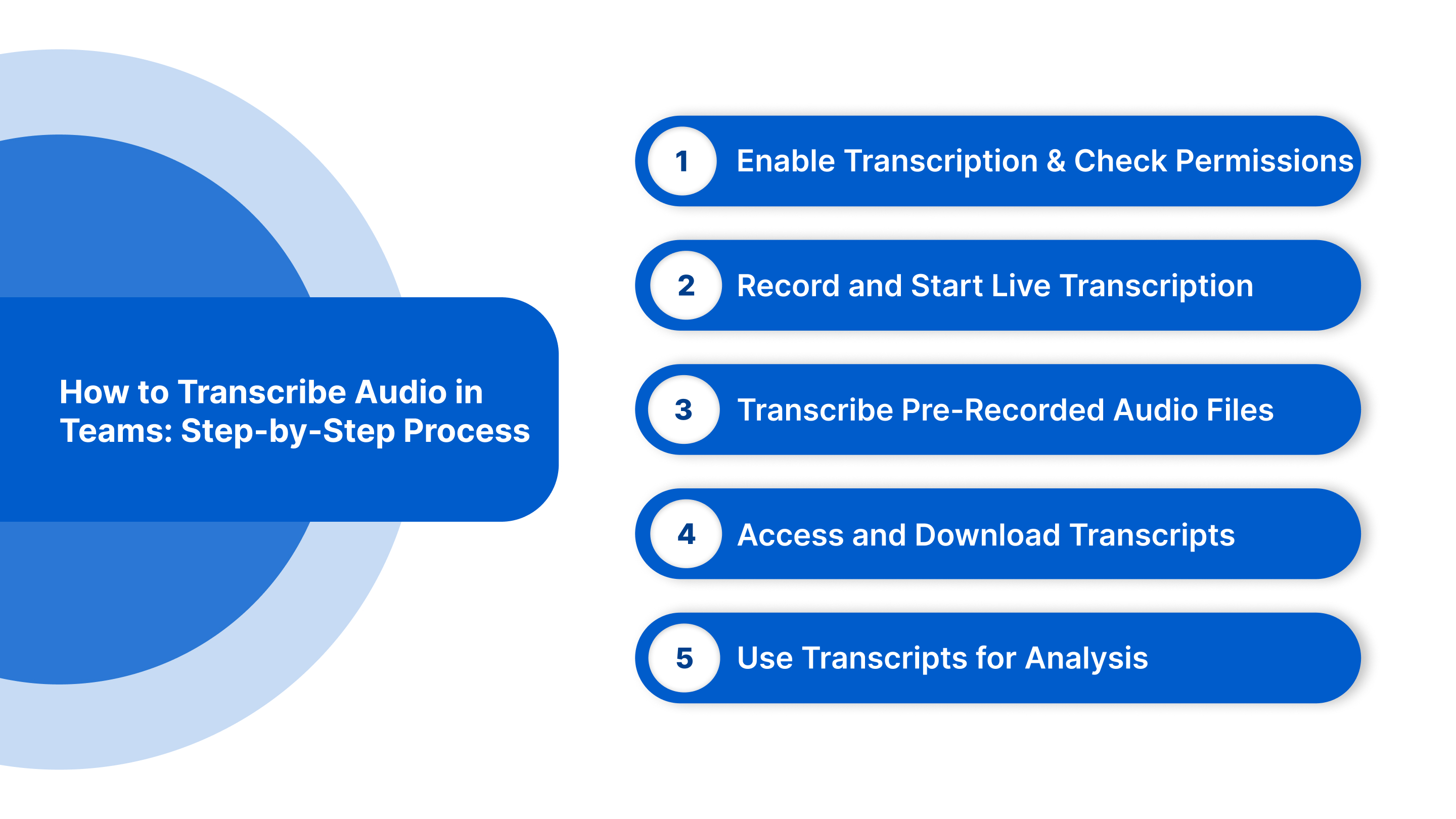
Before capturing any audio, make sure permissions are set, recording is enabled, and you understand the steps for transcribing both live and pre-recorded Teams meetings. The following guide walks you through pre-meeting setup, live transcription, and accessing post-meeting transcripts:
Step 1. Enable Transcription and Check Permissions
Before starting, ensure transcription is activated, and all necessary permissions are in place:
- Licences Required: Your organisation must have Microsoft 365 E3, E5, or Business Standard licences, while Teams Premium or Copilot licences provide additional transcription features and language support.
- Admin Settings: Administrators must enable transcription in the Teams Admin Centre by navigating to Meetings → Meeting Policies → Allow Transcription and assigning the correct policy to users.
- Recording Permissions: Verify that your account has permission to record meetings, as transcription relies on the ability to capture recordings.
- Live Captions: Ensure live captions are turned on in the meeting options, as transcription uses this feature to generate text.
Completing these steps ensures transcription is available and ready for live or recorded meetings.
Step 2. Record and Start Live Transcription
Organisers or presenters can capture live discussion in real time by following these steps:
- Start the Meeting: Launch your Teams meeting as usual and inform participants that it will be recorded and transcribed for transparency.
- Enable Recording: Click More Actions (three dots) → Start Recording to begin recording the meeting alongside transcription.
- Start Transcription: Select More Actions → Start Transcription to enable live transcription, which generates captions as participants speak.
- Monitor in Real Time: Captions appear live, and speaker identification helps distinguish different participants for clarity.
- Pause or Stop Transcription: You can pause or stop transcription at any time without affecting the meeting recording.
This step ensures that all spoken content is captured accurately and immediately.
Step 3. Transcribe Pre-Recorded Audio Files
If you need to transcribe an audio file outside a Teams meeting, follow this approach:
- Play Audio During a Meeting: Start a Teams meeting and share your system audio while playing the pre-recorded file.
- Enable Recording & Transcription: Follow the same steps used for live meetings to record and transcribe the audio.
- Optimise Audio Quality: Ensure the audio is clear and free of background noise to improve transcription accuracy.
This method allows organisations to include pre-recorded content efficiently in their workflow.
Step 4. Access and Download Transcripts
After the meeting or recorded session, transcripts are automatically saved and can be accessed for review:
- Locate Transcripts: Open the meeting recording in Teams, Microsoft Stream, OneDrive, or SharePoint, and select the Transcript tab to view the text.
- Download or Share: Save the transcript as a .vtt or .txt file for internal use, sharing, or archiving.
- Permissions: Access to the transcript is usually limited to the organiser and presenters unless organisational policies allow broader permissions.
Having transcripts easily accessible ensures discussions can be revisited, reviewed, or shared across teams.
Step 5. Use Transcripts for Analysis and Workflow Integration
Once your transcripts are ready, they can be leveraged to improve decision-making and operational workflows:
- Analyse Discussions: Review the transcript to identify key points, track recurring keywords, and summarise important conversations.
- Integrate with Tools: Feed transcripts into CRM systems, analytics dashboards, or knowledge management platforms to enhance collaboration and insights.
- Share Insights: Distribute findings to your team and apply them in reports, presentations, or training materials to maximise business value.
Struggling to capture every word in your meetings accurately? Get seamless, multilingual transcription with speaker identification and keyword spotting through Reverie’s Speech-to-Text API.
Convert Team Conversations into Text Instantly
Reduce operational effort by up to 62% using Reverie’s enterprise Speech-to-Text APIs.
Also Read: 5 Key Multilingual Speech Recognition Trends for Businesses in India
While following these steps ensures transcripts are captured accurately, real-world meetings often present challenges that can affect transcription quality and usability. Let’s explore how to address them.
Teams Transcription Challenges and How to Solve Them
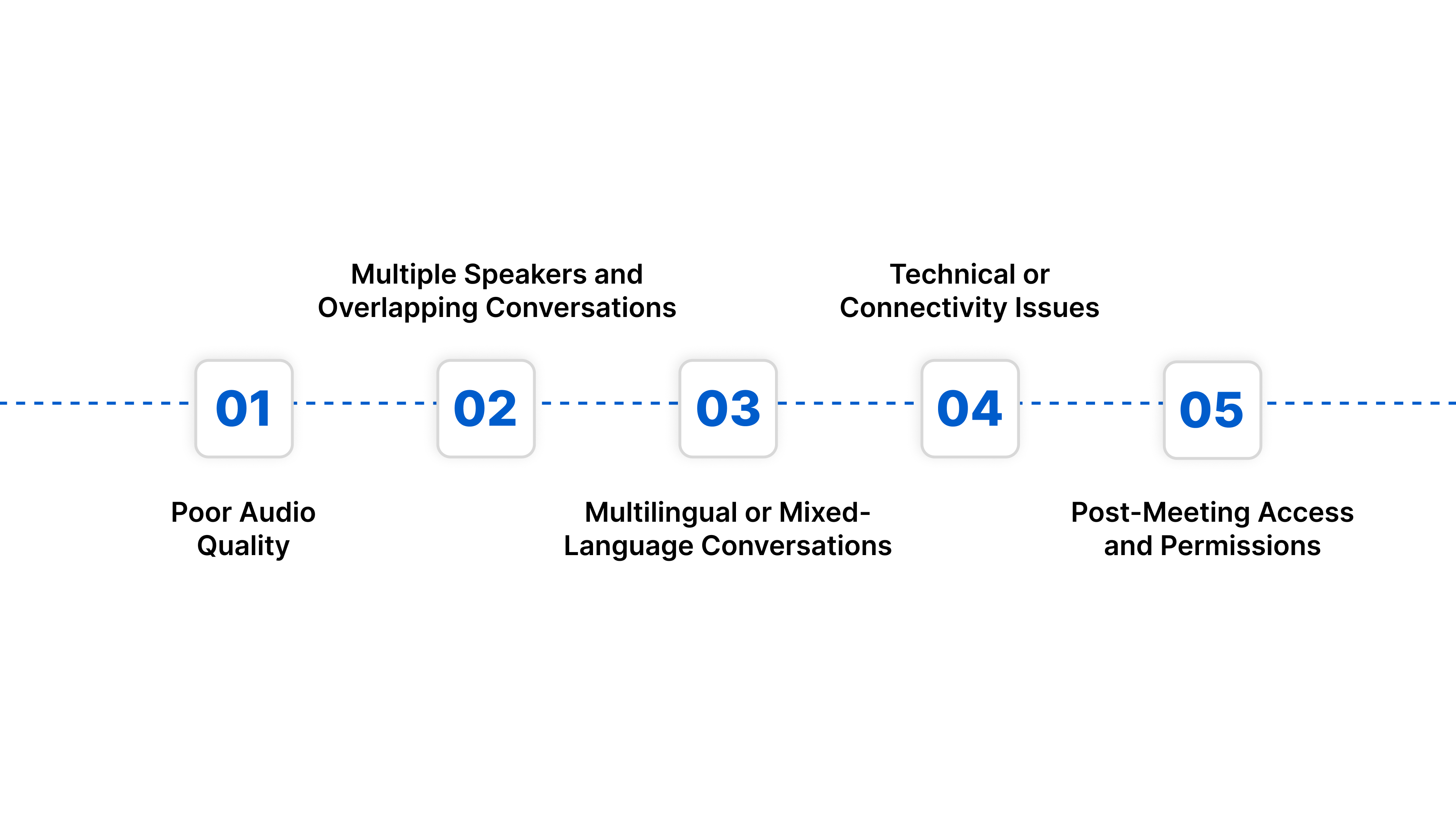
Transcribing meetings in Microsoft Teams can save time and make discussions actionable, but it comes with its own set of challenges. Understanding these issues and how to address them ensures accurate, usable transcripts for your organisation.
1. Poor Audio Quality
Muffled, distorted, or noisy audio can significantly reduce transcription accuracy.
How to Overcome:
- Use high-quality microphones or headsets and minimise background noise.
- Ensure all speakers are close to the mic and adjust Teams audio settings for clarity.
2. Multiple Speakers and Overlapping Conversations
When several participants speak at once, transcription can struggle to distinguish between voices.
How to Overcome:
- Encourage participants to speak one at a time where possible.
- Enable speaker identification in Teams and consider breaking long discussions into smaller sessions.
3. Multilingual or Mixed-Language Conversations
Teams’ native transcription primarily supports English, which can create issues in multilingual or code-switched conversations.
How to Overcome:
- Integrate specialised APIs like Reverie Speech-to-Text for accurate transcription across Indian languages, including Hindi, Tamil, and Bengali, with real-time speaker identification.
- Set expectations with participants about supported languages during the meeting.
4. Technical or Connectivity Issues
Poor internet connections or device problems can disrupt transcription and affect real-time accuracy.
How to Overcome:
- Ensure stable network connections for all participants.
- Test audio devices and Teams recording features before important meetings.
5. Post-Meeting Access and Permissions
Even if transcription works perfectly, incorrect permissions can prevent team members from accessing or using the transcripts.
How to Overcome:
- Verify transcript permissions in the Teams Admin Centre.
- Ensure organisers, presenters, or relevant team members have the right access to download, share, and review transcripts.
Also Read: The Future of Voice Search: A Strategic Guide for 2026
While Teams handles basic transcription, let’s see how Reverie Speech-to-Text delivers fast, reliable multilingual results.
Reverie Speech-to-Text: Multilingual Transcription Made Simple
Handling multilingual voice data is a challenge for B2B organisations in India. Reverie’s Speech-to-Text API converts spoken words into accurate text in real time, supporting multiple Indian languages and domain-specific vocabulary. This enables businesses to capture insights, automate workflows, and effectively engage regional users.
Key features include:
- Multilingual Transcription: Supports Hindi, Tamil, Telugu, Bengali, Marathi, Gujarati, Malayalam, Kannada, Odia, Punjabi, and English, capturing voice data accurately across dialects.
- Live and Batch Transcription: Enables real-time meeting captions and file-based transcription for calls, IVR, or recordings.
- Domain-Specific Accuracy: Customisable models handle specialised vocabulary for automotive, legal, healthcare, and other sectors.
- Speaker Identification & Filters: Recognises multiple speakers, flags keywords, and filters profanities for clear, safe transcripts.
- Enterprise Integration: Cloud or on-premise deployment with SDKs and APIs for seamless integration into apps, bots, and workflows.
Reverie helps B2B teams turn voice data into actionable insights, enhance customer engagement, and streamline operations. Start using Reverie’s Speech-to-Text API today and make every conversation count. Contact us to learn more!
Conclusion
Capturing every word in Microsoft Teams meetings is crucial for Indian B2B teams, especially when discussions involve multiple languages and technical terms. Accurate transcription ensures nothing is missed, decisions are faster, and insights are easily actionable.
For organisations that need more than basic Teams transcription, Reverie’s Speech-to-Text API delivers enterprise-grade, multilingual transcription with real-time streaming and domain-specific accuracy. It helps businesses harness voice data from meetings, calls, apps, bots, and IVR systems into actionable insights.
Don’t let valuable voice data go unused. Experience Reverie’s Speech-to-Text API today. Sign up now and make every conversation count.
FAQs
1. Can Teams transcription handle code-switched conversations natively?
Microsoft Teams primarily supports English transcription. For code-switched audio in Hindi, Tamil, or Marathi, specialised APIs like Reverie improve accuracy while retaining contextual meaning.
2. How can I ensure transcript accuracy in large, multi-speaker meetings?
Use high-quality audio devices, enable speaker identification, and consider breaking long sessions into smaller segments to minimise overlapping speech.
3. Is it possible to transcribe recordings from mobile Teams apps?
Yes, but transcription accuracy depends on the device’s microphone quality, network stability, and the app version. Cloud-based transcription APIs can improve the reliability of mobile recordings.
4. How can enterprises leverage transcripts for compliance audits?
Export transcripts to secure storage with role-based access, maintaining audit-ready records. Organisations can efficiently track meeting decisions, client approvals, and regulatory discussions.
5. Can transcription integrate with existing CRM or analytics tools?
Yes, transcripts can be automatically fed into CRMs, dashboards, or knowledge bases, enabling keyword tracking, sentiment analysis, and actionable business insights.