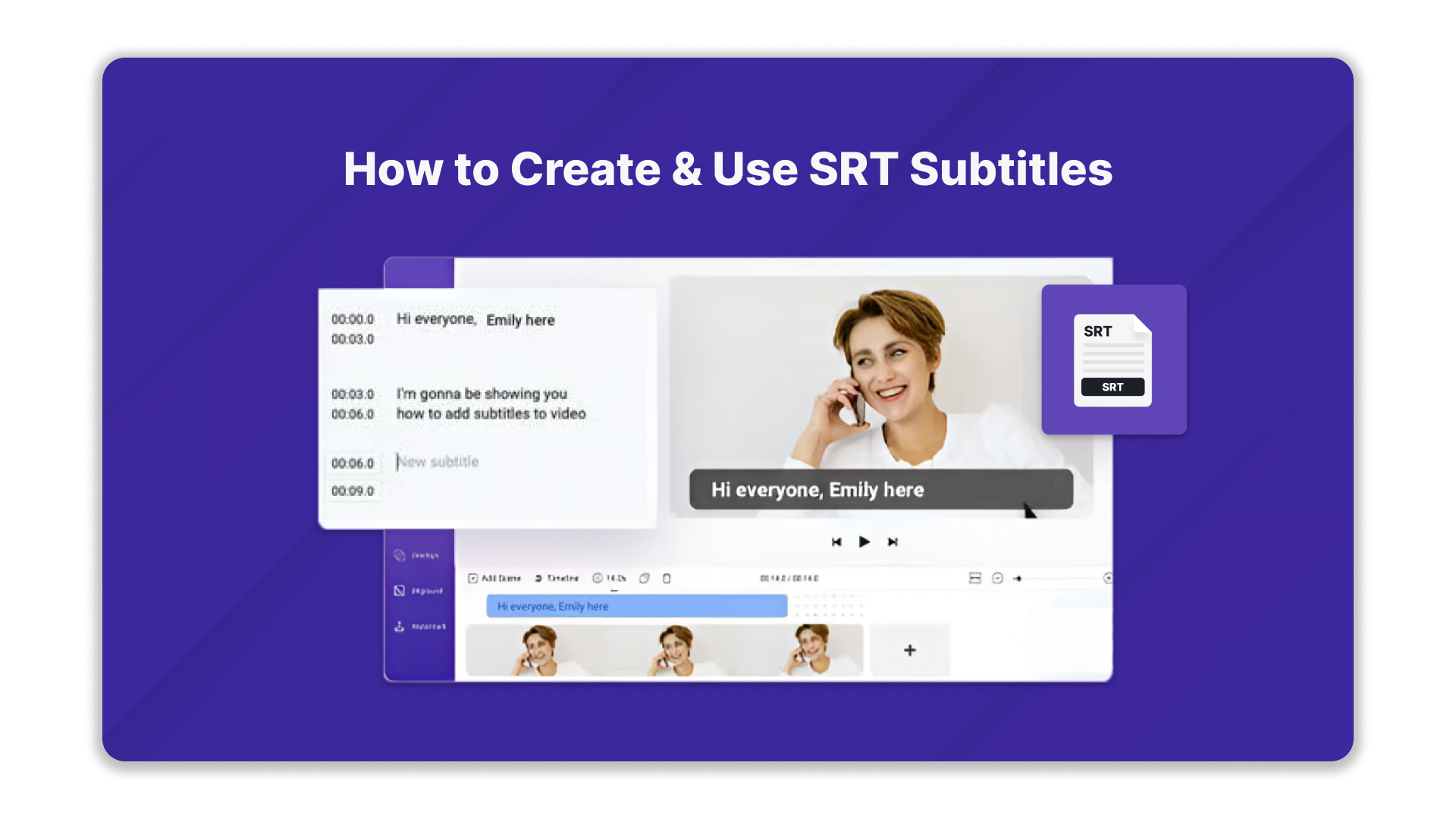
Want to make your business videos more inclusive and engaging? In industries where organisations reach diverse audiences, on-screen text isn’t just about clarity; it’s about connection and inclusivity.
From product demos to training videos across sectors such as healthcare, education, and e-commerce, even a minor transcription error can lead to confusion or compliance risks. Without a reliable solution, businesses often miss valuable engagement opportunities and struggle to connect effectively with regional audiences.
That’s where SRT subtitles come in, a simple, universal format for adding precise, time-synced captions to your videos. This blog explores how to create and utilise SRT subtitles effectively, enabling you to enhance accessibility, engagement, and reach across your digital platforms with ease.
Key Takeaways
- SRT Subtitles are plain-text files that store subtitles with timecodes, making them compatible with most video platforms and internal tools.
- SRT subtitles reduce localisation costs, scale multilingual content, improve compliance, and support accessibility across diverse Indian audiences.
- Subtitles improve training completion rates, reduce support queries, and allow teams to analyse user behaviour and spoken content.
- Use Notepad or any plain-text editor to create subtitles by adding sequence numbers, timestamps, and text, then save it with a .srt extension.
What are SRT subtitles?
SRT (SubRip Subtitle) is a type of simple text files that store your subtitles along with the exact time they should appear and disappear on screen. Each subtitle block in an SRT file includes a sequence number, a time code, and the text to be displayed. Because SRT is a standard format, most video platforms and internal training systems can read it without any custom development.
This means you can attach an SRT file to your existing video assets, such as product demos, compliance training videos, customer support explainer videos, IVR flows, or patient education content, without altering the video itself. In sectors like healthcare, banking, education, e-commerce, and customer support, SRT subtitles help you to:
- Make content understandable across Indian English and multiple regional languages.
- Support accessibility and compliance requirements.
- Enable better search and analytics on spoken content.
In short, SRT is the practical layer that turns your audio and video into clear, readable information for diverse teams and customers. When paired with a speech-to-text solution like Reverie’s Speech-to-Text API, organisations in these sectors can automatically generate accurate transcripts that can be quickly converted into SRT subtitles at scale.
Once you know what SRT subtitles are, the next question is what makes them so important.
Why are SRT Subtitles important?
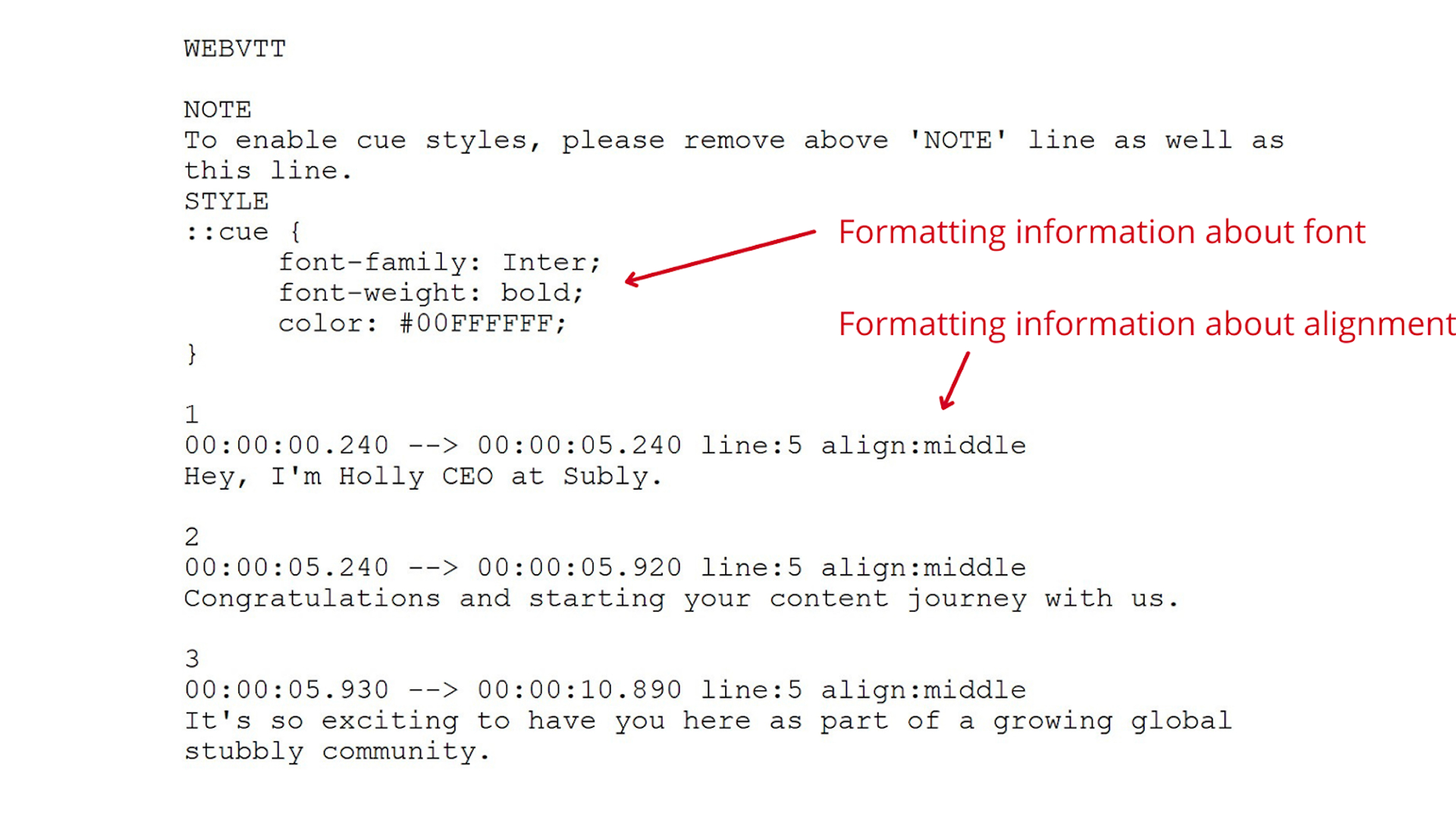
SRT subtitles are important because they transform your video and audio assets into structured, reusable content that supports your business goals across regions and functions. Instead of being “just another video”, your content becomes easier to localise, measure, and plug into your existing digital systems and workflows.
Here are the key reasons why SRT subtitles matter for your organisation:
1. Reduce localisation and production costs
With SRT, you do not need to re-record or re-edit videos for each language or region. You can maintain a single master video and attach multiple subtitle files for Hindi, Tamil, Telugu, and other Indian languages. This significantly lowers your localisation spend while keeping your brand messaging consistent across markets.
2. Scale multilingual content faster
For sectors such as healthcare, banking, education, and e-commerce, you often need to roll out new content quickly, implement policy changes, update products, provide compliance training, or launch features. SRT subtitles enable your teams or partners to update text files instead of recreating full video assets, helping you reach diverse language audiences much faster.
By using Speech-to-Text API to automate transcript generation across multiple Indian languages, you replace manual subtitle creation with a faster, scalable workflow that supports consistent multilingual content delivery.
3. Improve customer experience and key metrics
Clear, time-synced subtitles reduce friction across digital journeys, whether in onboarding, app walkthroughs, IVR flows, or support content. This can lead to higher completion rates, fewer support tickets, better self-service adoption, and improved CSAT or NPS scores, which directly impact your retention and revenue.
4. Unlock better analytics and operational insight
Because SRT files are text-based and time-coded, they can be indexed and analysed. Your teams can mine subtitle data to identify common issues, track which topics get the most attention, and optimise scripts or flows. This is especially valuable for call analytics, training optimisation, and understanding user behaviour across your platforms.
5. Strengthen compliance, governance, and audit readiness
In regulated industries such as healthcare, banking, and legal, SRT subtitles provide a clear, documented trail of what information was communicated and when. This supports audit requirements, reduces ambiguity, and helps you demonstrate that customers, patients, or partners were given accurate and complete information in a language they can understand.
Once you know why SRT subtitles matter, the next step is knowing how to create them efficiently.
How to create SRT Subtitles
Creating an SRT subtitle file is a straightforward process that doesn’t require any specialised software. With a simple text editor, your team can quickly add accurate, time-synced captions to training, support, or product communications videos. This helps you maintain control over quality and localisation while keeping production costs low.
Here are the steps to create an SRT file for subtitles effectively for your business videos:
1. Choose and open a text editor
Start by selecting a simple text editor that saves plain-text files, such as Notepad, TextEdit, TextMate, or Notepad++. These tools are usually free and already installed on most systems. Your team will use this editor to type timestamps and subtitle lines in the SRT format.
If you’re working on Windows, open Notepad to begin creating your subtitles. You will use it to type all your subtitle numbers, timestamps, and text in plain .txt format, which you will later save as an .srt file.
2. Review the video file you want to subtitle
Open the video in your preferred media player and keep it side by side with Notepad (split screen if possible). Play the video once to understand the flow note sections, which include important explanations, regulatory content, or customer communication that must be captured accurately (for example, consent lines in healthcare or disclaimers in banking).
3. Create the first timestamp block in Notepad
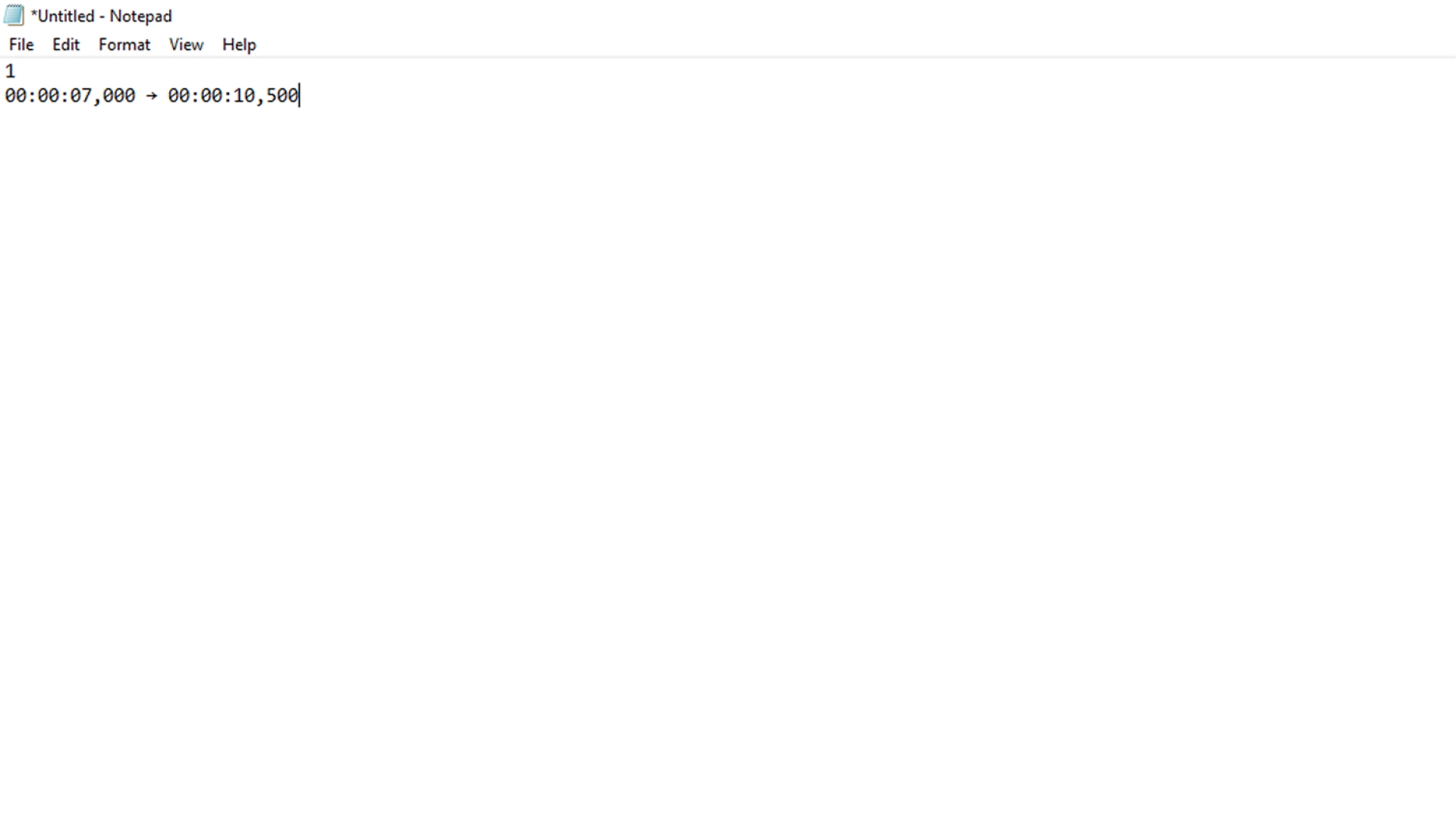
In Notepad, type: 1
On the first line. This indicates the first subtitle.
- Play the video and pause when the first person starts speaking.
- Note the start time and decide when that line should disappear.
- On the next line in Notepad, enter the timing in this format:
00:00:07,000 → 00:00:10,500
This tells the player to show the first subtitle between 7.0 and 10.5 seconds.
4. Add the subtitle text under the timestamp
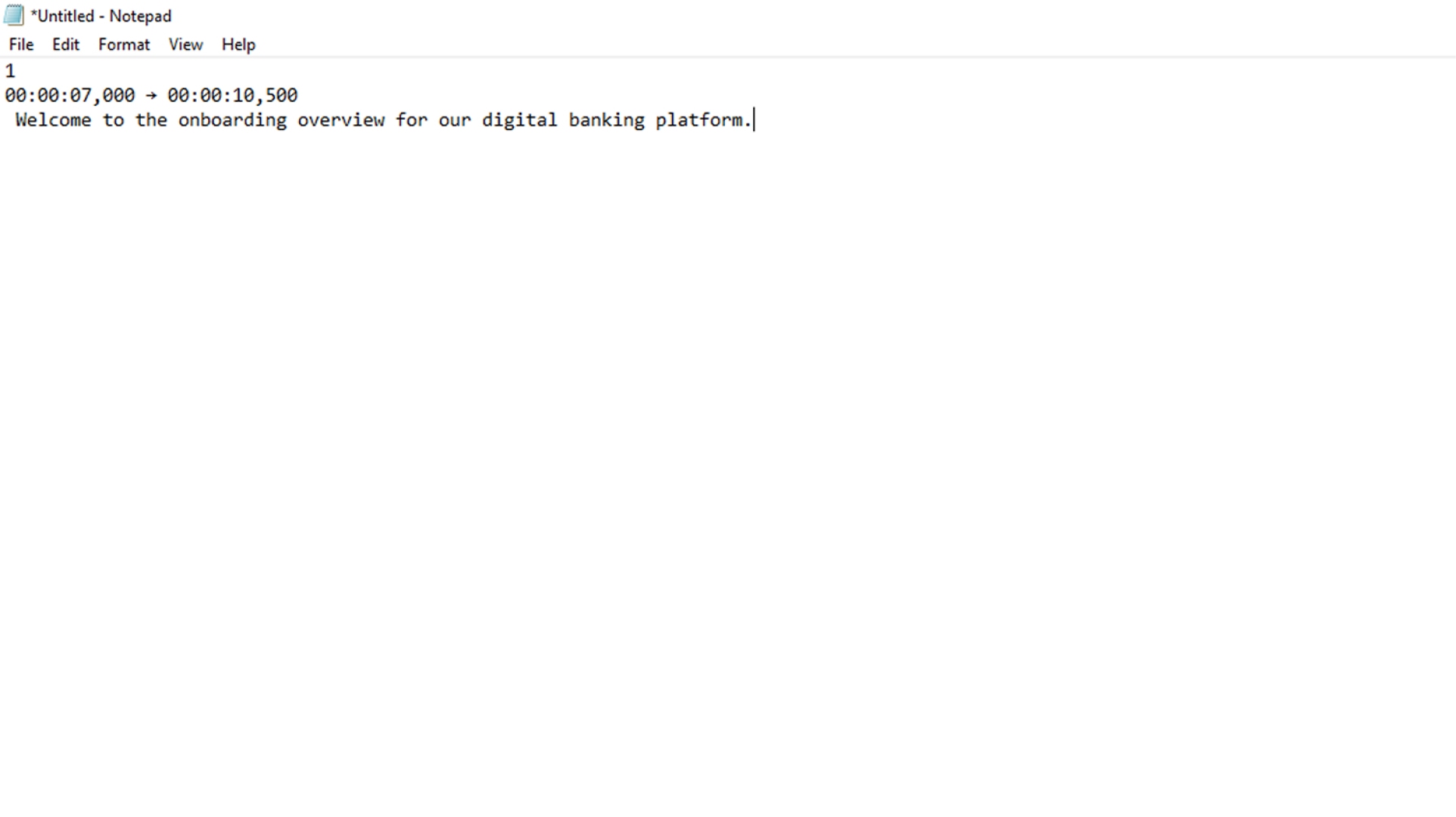
On the line below the timestamp, type the subtitle content that matches the spoken audio. Enter the subtitle text in the next line.
5. Repeat the pattern for all subtitles in Notepad
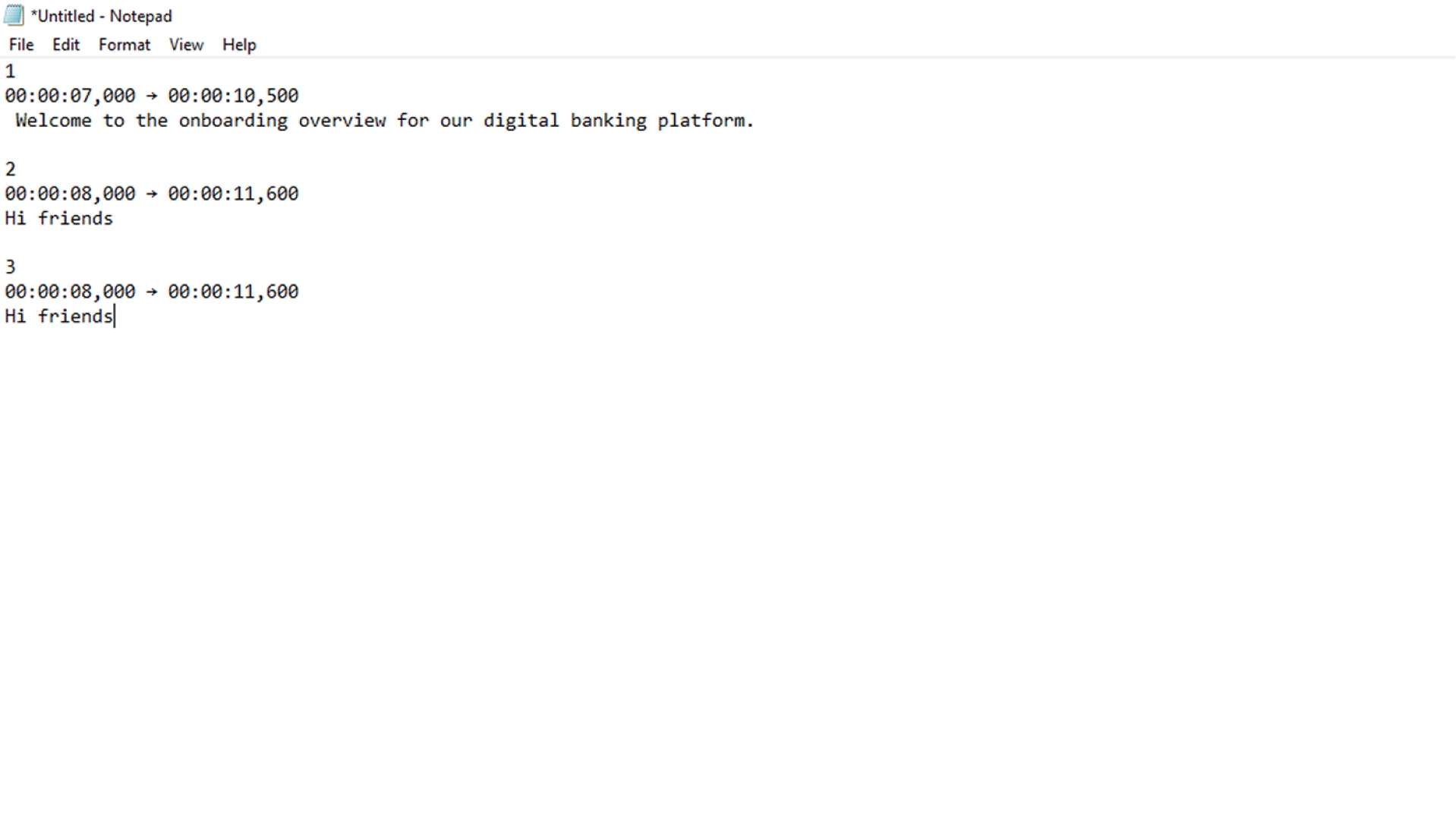
After each subtitle block, leave one blank line, then:
- Type the next number (2, 3, 4, and so on).
- Add the timestamp line.
- Add the subtitle text.
Continue this pattern till you cover the entire video. For longer content (like training sessions or webinars), you can assign different time ranges to different team members and later merge their SRT segments if needed.
6. Review timing and accuracy against the video
When you finish the first draft:
- Play the video again from the beginning.
- Follow along with what you have written in Notepad.
- Check if each subtitle appears long enough to be read and closely matches what is spoken.
This step is crucial for sectors where even minor errors can lead to confusion or compliance issues.
7. Save your Notepad file as an SRT file
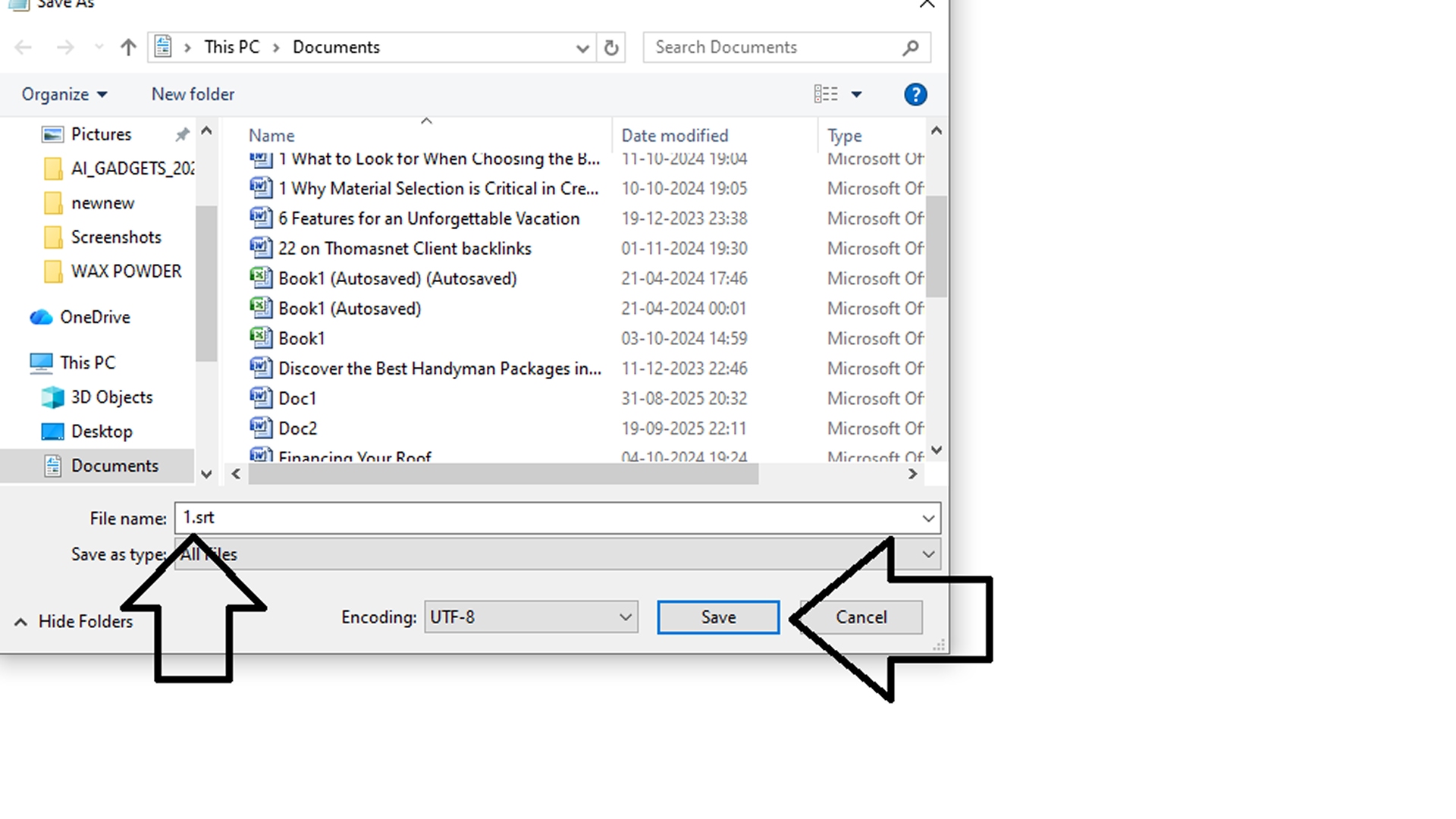
In Notepad, go to File → Save As
- In the File name, type something like: filename.srt
- In Save as type, select All Files.
Click Save. Your plain-text Notepad file has been converted to an SRT subtitle file.
8. Upload, test, and edit when required
Upload the SRT file along with your video to your platform (LMS, internal portal, product help centre, or video hosting tool). Enable subtitles and watch the video from start to finish. If you encounter issues with timing or wording, reopen the .srt file in Notepad, edit the timestamps or text as needed, save the changes, and re-upload.
Because it is just a text file, your team can quickly iterate, add new language versions, or adapt subtitles as your product, policies, or scripts change.
While manual creation is suitable for smaller volumes, automating the process becomes essential as your content volume scales.
How Reverie Automates Video-to-Text Conversion
When you are dealing with hours of calls, consultations, training sessions, or product demos every week, manual transcription does not scale. Reverie’s Speech-to-Text API allows you to automate this entire process so your teams don’t have to play–pause–type for every video.
You send the audio or video to the API, and it returns accurate text in Indian English and multiple Indian languages that you can use for subtitles, documentation, analytics, or I workflows.
Here are the key features that support automated video-to-text workflows:
- Accurate Speech Recognition: Achieve precise conversion of spoken words into text, ensuring transcription accuracy.
- Multilingual Support: Transcribe speech across various Indian languages and English, enabling multilingual capabilities.
- Punctuation and Formatting: Automatically add punctuation and format transcribed text for improved readability and structure.
- File-Based Recognition: Process audio input from pre-recorded audio files, facilitating versatile usage scenarios.
- High Scalability: Count on reliable performance to handle high volumes of requests, ensuring consistent service.
Conclusion
Creating and using SRT subtitles is a practical way to make your video content more accessible, multilingual, and operationally efficient. Whether you’re delivering healthcare training, product demos, legal explainers, or IVR journeys, SRT files help you improve content clarity, meet compliance needs, and engage users across regions without increasing production costs.
If you’re looking to automate the entire video‑to‑text workflow, consider the Reverie Speech‑to‑Text API. We support 11 Indian languages and Indian English, and integrate seamlessly into your video or audio pipeline. With our API, you can transform all spoken content into readable text perfect for generating SRT subtitle files, powering analytics, and delivering multilingual experiences at scale.
So, why wait? Sign up with Reverie and start automating your subtitles!
FAQs
1. What common errors should you watch out for when using SRT files?
Common issues include incorrect time codes, missing blank lines between blocks, improper numbering, or unsupported characters. These can cause subtitles to stop functioning.
2. Can SRT files be used for analytics or indexing?
Yes, because SRT files are plain text and time-coded, they can be indexed, searched, and mined for keywords or patterns useful for support, training, and compliance use cases.
3. Do all video platforms support SRT files?
Most major video platforms (YouTube, Facebook, LMSs, e‑learning portals) support SRT uploads. However, it is essential to verify the naming conventions and format requirements for each platform.
4. Can SRT subtitles be used on social media platforms?
Platforms like YouTube, Facebook, and LinkedIn accept SRT uploads. Once added, the platform automatically syncs captions with the video.
5. Can SRT subtitles support multiple fonts or styles?
Only basic tags, such as bold, italics, and underline, work. Decorative fonts or advanced styling aren’t supported in this format.